Author:



Blurry photos ruining your memories?
With today’s powerful iPhone unblur apps, you can easily restore clarity and sharpness in just a few taps.
Bring your photos back to life and enjoy clearer, better-looking memories.
| Table of Contents |
|---|
Which Unblur App Fits Your Kind of Blur?
Before you pick an app, work out what caused the blur. Soft focus, camera shake and low resolution are three different problems, and each responds to a different kind of tool.
| Type of blur | What helps | Apps to try |
| Slightly soft or out of focus | Manual sharpening or a one-tap AI pass | YouCam Enhance, Snapseed, Adobe Photoshop Express |
| Camera shake or motion blur | AI deblurring; results vary, so retake if you can | YouCam Enhance, SnapEdit, Fotor |
| Old or low-resolution photo | Restoration and upscaling | Remini, Let’s Enhance, Pixelup |
| Photo you plan to print | Upscaling to a larger, sharper file | Let’s Enhance |
| Selfie or portrait | Face-tuned enhancers (check the face still looks like you) | BeautyPlus, Pixelup, Remini |
Verdict: for most people, start with YouCam Enhance for one-tap sharpening, use Snapseed or Adobe Photoshop Express when you want manual control, and use Let’s Enhance when the goal is a print.
What Kind of Blur Is in Your Photo? A Quick Guide
The right fix depends on why the photo is blurry. Pick the one that looks most like yours to see what usually causes it, what tends to help and what to avoid. This is a quick guide based on common photo problems, not a diagnosis of your file.
Camera shake or a moving subject
Why it happens: Streaks run in one direction because the camera or the subject moved while the shutter was open.
What usually helps: Mild streaking can often be softened with a sharpening or deblur tool that targets directional blur. Heavy streaking is rarely recoverable, so retake the shot if you can.
What to avoid: Pushing sharpening to the maximum. It adds bright halos around edges and makes the photo look processed.
The camera missed focus
Why it happens: Everything looks soft, including edges that should be crisp, because focus landed behind or in front of the subject.
What usually helps: A moderate sharpening or AI enhancement pass can bring edges back. For the next shot, tap the subject and wait for the focus lock before pressing the shutter.
What to avoid: Running a strong noise reducer after sharpening. It smooths skin and texture until faces look plastic.

Too small or too compressed
Why it happens: Visible square blocks appear when a small image is zoomed in a lot or has been compressed again and again by messaging apps.
What usually helps: Look for the original file first, since a forwarded copy has already lost detail. An AI upscaler can then enlarge it while rebuilding edges.
What to avoid: Saving the file as a JPEG over and over. Every save throws away a little more detail.

A dim night or indoor shot
Why it happens: The phone raised its light sensitivity in a dark scene, which adds speckled noise and smears fine detail.
What usually helps: Reduce the noise first, then sharpen gently and lift brightness a little. Next time use night mode, rest your elbows on something steady, and move closer to a light source.
What to avoid: Brightening the photo heavily before removing noise. That makes the grain much louder.
Example photos are AI-generated and edited to show each type of blur.
I Tried the Top 13 Unblur Photo Apps to Deblur Your Photos
- YouCam Enhance
- Adobe Photoshop Express
- Snapseed
- SnapEdit
- Fotor
- PicWish
- BlurBuster
- Picsart
- BeautyPlus
- Remini
- Pixelup
- PicMa
- Let's Enhance
Discover the top 13 unblur photo apps of 2026, perfect for enhancing your photos.
👉 See how to avoid blurriness in your photo >>>
| App | Platform | Best For |
| YouCam Enhance | iOS / Website | One-Tap AI Sharpening & Deblurring |
| Adobe Photoshop Express | iOS / Android / Website | Professional-Level Editing Tools |
| Snapseed | iOS / Android | Advanced Manual Detail Control |
| SnapEdit | iOS / Android / Website | Fast, Automated Blur Removal |
| Fotor | iOS / Android / Website | All-In-One Photo Editing Suite |
| PicWish | iOS / Android / Website | Simple One-Click Sharpening |
| BlurBuster | Website | Quick Online Deblurring |
| Picsart | iOS / Android / Website | Creative Editing Plus Unblur |
| BeautyPlus | iOS / Android | Photo Unblur With Beauty Retouching |
| Remini | iOS / Android / Website | AI Restoration of Old, Blurry Photos |
| Pixelup | iOS / Android | Sharpening Portraits and Selfies |
| PicMa | iOS / Android | Removing Blur From Everyday Snapshots |
| Let's Enhance | Website | Print-Ready Upscaling & Deblurring |
YouCam Enhance: Enhance Sharpness and Resolution With AI
App Available: iOS/ Website
iOS App Rating: 4.7
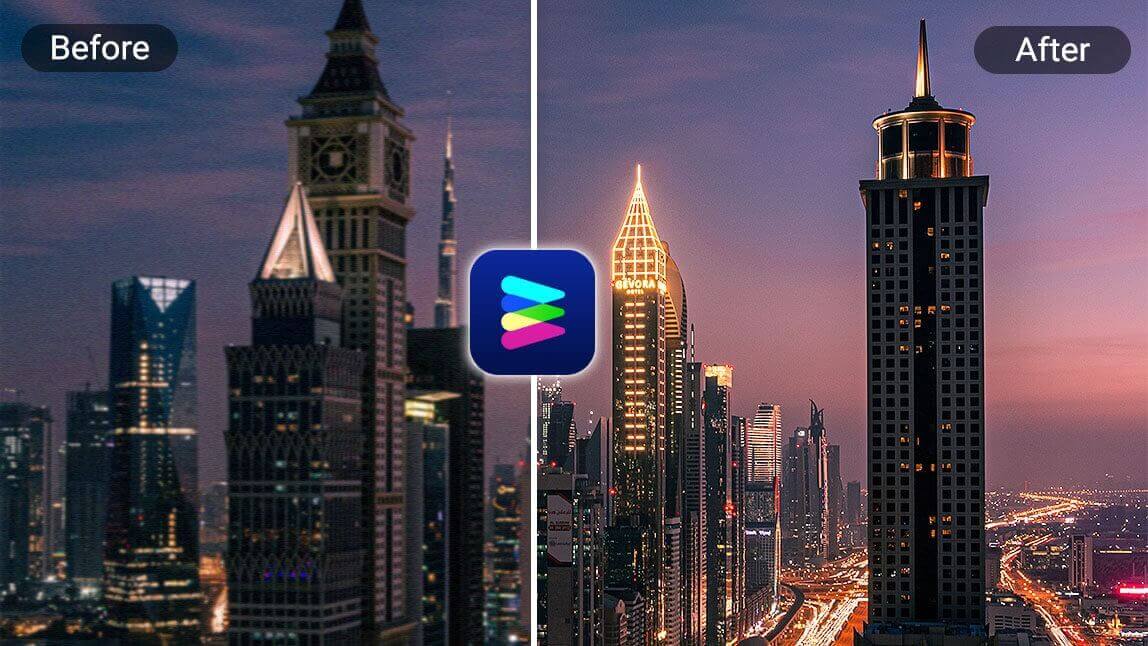
Meet YouCam Enhance, the ultimate photo editing app powered by advanced AI algorithms. With the one-tap enhancement, smart deblurring, and intelligent noise reduction, it effortlessly transforms your photos into stunning masterpieces.

YouCam Enhance demonstrates its remarkable AI Unblur capabilities through the following features:
Sharpen and Enhance Photo Resolution
👇Tap to experience YouCam Enhance’s AI sharpening capability

With YouCam Enhance, you can effortlessly enhance the sharpness and resolution of your photos. This powerful tool utilizes advanced AI algorithms to bring out intricate details and improve the overall clarity of your images.
Remove Motion Blur From Photos
👇Tap to remove motion blur from your photos.
YouCam Enhance utilizes advanced algorithms to effectively reduce the blurriness caused by camera shake or subject movement, resulting in sharper and clearer images. With just a few taps, you can rescue your blurry photos and bring out the hidden details with precision and ease.
Remove Blemishes From Photos
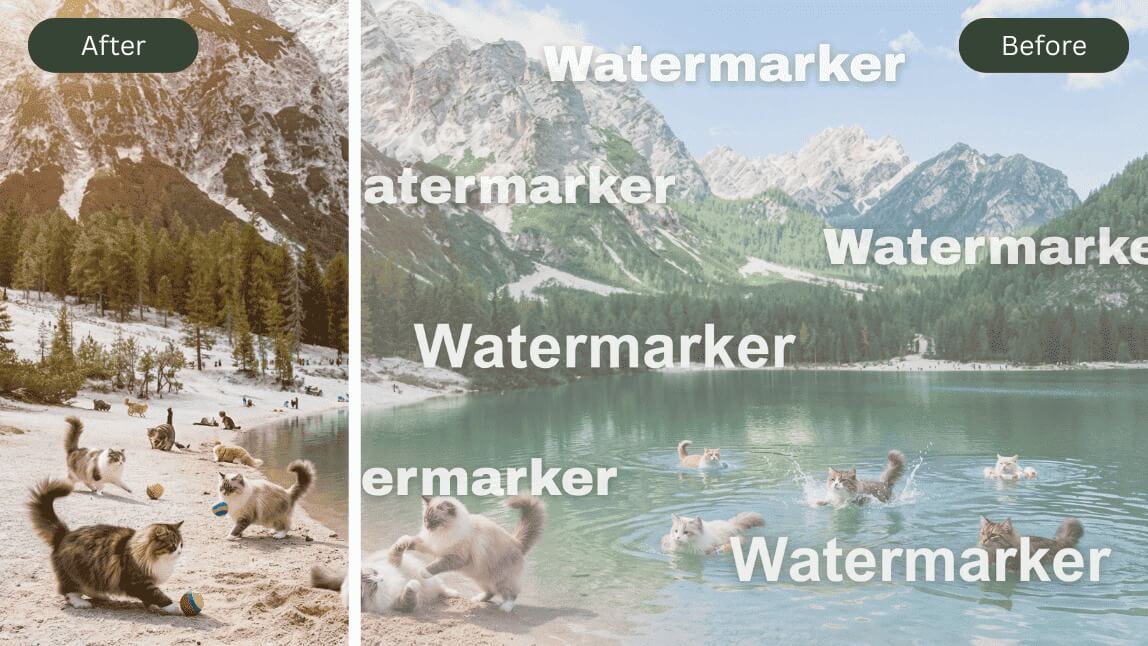
The “Object Removal” feature in YouCam Enhance empowers you to easily eliminate blemishes from your photos, delivering a seamless and impeccable finish. With a simple click, you can remove unwanted objects and enhance the overall quality of your images, ensuring they look picture-perfect in no time.
Wonder how YouCam Enhance unblur your photos with high-quality results?
👉 Learn how to unblur your photos in simple steps.
Adobe Photoshop Express

Adobe Photoshop Express is the one I reach for when a photo is only slightly soft. Its Sharpen and Detail sliders give you manual control, so you can lift edge clarity without an over-processed look. It is a sharpening tool rather than a true blur-reversal tool, so heavy motion blur will still look soft, and some advanced features sit behind a paid plan.
Snapseed

Snapseed is a free editor from Google, and its Details tool (Structure and Sharpening) is a clean way to bring back edge definition by hand. There is no one-tap AI deblur here, so it suits people who are comfortable adjusting sliders and want to avoid halos around edges.
SnapEdit

SnapEdit is a quick, automated editor available in the browser and on mobile. It works best on everyday snapshots that are mildly out of focus, where a single automatic pass is enough. Because the process is automatic, you get less control over how strong the sharpening is.
Fotor
Fotor pairs an AI enhancer with a conventional editor, so you can run an automatic sharpen pass and then fine-tune brightness and color in the same place. It fits people who want one app for both cleanup and finishing touches, but some of the stronger enhancement tools require a subscription.
PicWish

PicWish keeps the process simple: upload a photo and let its enhancer sharpen it in one pass. That makes it convenient for product shots and quick social posts. Free use is usually limited in export quality or daily credits, so check the current limits before relying on it for a batch of photos.
BlurBuster

BlurBuster is a browser-based tool aimed at fast, no-install deblurring. It is handy when you are on a computer without your usual apps, but I treat it as a quick first attempt rather than a final edit, and I read the privacy terms before uploading personal photos to any web tool.
Picsart
Picsart is a full creative suite that also includes AI enhancement. If your blurry photo needs a new background, text, or stickers as well, you can do everything in one place. For pure unblurring it is more than you need, and full access to its AI tools is subscription based.
BeautyPlus

BeautyPlus is built around selfies and portraits, so its enhancement is tuned for faces and skin rather than landscapes or documents. It is a reasonable choice for a slightly soft selfie, but it applies beauty retouching too, so check that the result still looks like you.
Remini

Remini is best known for restoring old or low-resolution portraits. It rebuilds facial detail with AI, which can look striking on a faded family photo, but it can also invent detail, so compare the result with the original face before you share it. Free use is limited by daily quotas.
Pixelup

Pixelup focuses on portraits and selfies, sharpening and upscaling faces on mobile. It is easy to use for headshots and group photos, but the same caution applies as with any AI face enhancer: the added detail is generated, not recovered.
PicMa
PicMa targets everyday snapshots on mobile with a simple enhance flow. It is a lightweight option when you only need a small clarity boost and do not want a full editor, though it offers fewer manual controls than Snapseed or Photoshop Express.
Let's Enhance
Available: Website
Let's Enhance rounds out this list as a browser-based AI photo enhancer built for print-ready results. Instead of quick filters, it uses AI models tuned separately for enhancing, upscaling, and restoring damaged or blurry images, so soft focus, compression artifacts, and old scans each get treated with the right fix rather than a one-size-fits-all sharpen.
"Amazing image and video enhancer, generator, upscaler, and other great tools! Their team is very nice and they really care about feedback." — Artimol, verified Trustpilot review
Upload a blurry photo, choose the Sharpen or Enhance mode, and Let's Enhance recovers detail and corrects color without the plastic, over-processed look common in cheaper unblur tools, making it a solid pick when you need a photo large and sharp enough to print.
Ready to bring your blurry photos back to life?
Explore these 13 AI-powered unblur photo apps and discover the perfect one for your needs. Follow the next guide and witness the magic as your images transform into breathtaking, sharp creations.
How to Avoid Bluriness in Photos
Blurry photos can be frustrating, especially when they capture your most cherished moments. Most often, blurriness happens due to camera shake, low light conditions, motion of the subject, or simply auto-focus errors.

These are some ways for you to avoid blurriness in your photos:
- Camera shake: Hold your phone steady or use a tripod.

- Low light: Add more light or use night mode.

- Moving subjects: Use a faster shutter or burst mode.

- Auto-focus errors: Tap the subject to focus or switch to manual focus.

How to Unblur Pictures With the Best Unblur Photo App
The good news? You don’t have to live with imperfect shots. Here's how:
- Step 1. Download the Best Unblur Photo App
- Step 2. Upload Your Photo
- Step 3. Unblur Photos With One Tap
- Step 4. Save Your Photo
Let's bring your blurry pictures to life with the help of the best photo unblur app. Here's a simple guide to help you unleash its full potential.
Step 1. Download the Best Unblur Photo App
To start unblurring photos, download the best unblur photo app: YouCam Enhance. Simply open the App Store, search for "YouCam Enhance," and tap the "Get" button to initiate the download. Once downloaded, you can start enjoying the powerful unblur capabilities of YouCam Enhance to improve the clarity and sharpness of your photos with ease.
Step 2. Upload Your Photo

Step 3. Unblur Photos With One Tap
To unblur photos, simply tap the "Enhance" button, which will automatically apply intelligent enhancements to sharpen and improve the overall quality of your image. Enjoy the convenience of instant one-tap photo unblur and let YouCam Enhance work its magic on enhancing every aspect of your photo.
Step 4. Save Your Photo
After enhancing your photo in YouCam Enhance, save it to your device's gallery with a tap on the save icon, and easily share it to Instagram or other social media platforms to showcase your improved images to a wider audience.
Download YouCam Enhance: Best App to Unblur Photos With AI
Need a photo editing app to unblur and enhance your photos? Look no further than YouCam Enhance, the ultimate app powered by AI for unblurring photos.
Download YouCam Enhance and experience the magic of AI-driven photo unblur firsthand!
More Unblur Photos Ideas
Unblur Your Photos With the Best Unblur Photo App