Author:


I bet most of us have thought about catching Santa when he visits our house on Christmas Eve. As we grow older, we might realize that it's almost impossible to capture Santa in a photo, but there will always be kids who would love to catch a glimpse of the mysterious Santa Claus.

That’s why I’d like to share how you can add Santa to photo that looks like you actually caught Santa in your house!
I tried all three ways to make this photo myself — the prompt-based AI edit, the manual cutout method, and AI Replace — and they landed pretty differently. The prompt method was fastest but gave the least control over exactly where Santa ended up; the manual cutout took longer but let me match the lighting much more precisely. Here's what I found with each, plus a quick comparison.
How to Get a “Catch Santa in My House” Photo?
With the free Santa-in-Photo app YouCam Perfect, you can easily add Santa to any photo, whether it's your living room, bedroom, or any other room you choose.
You can even "take a picture with Santa" with the AI tools in YouCam Perfect, the best Catch Santa app! Here's how you do it:
Picture with Santa by Entering Prompts
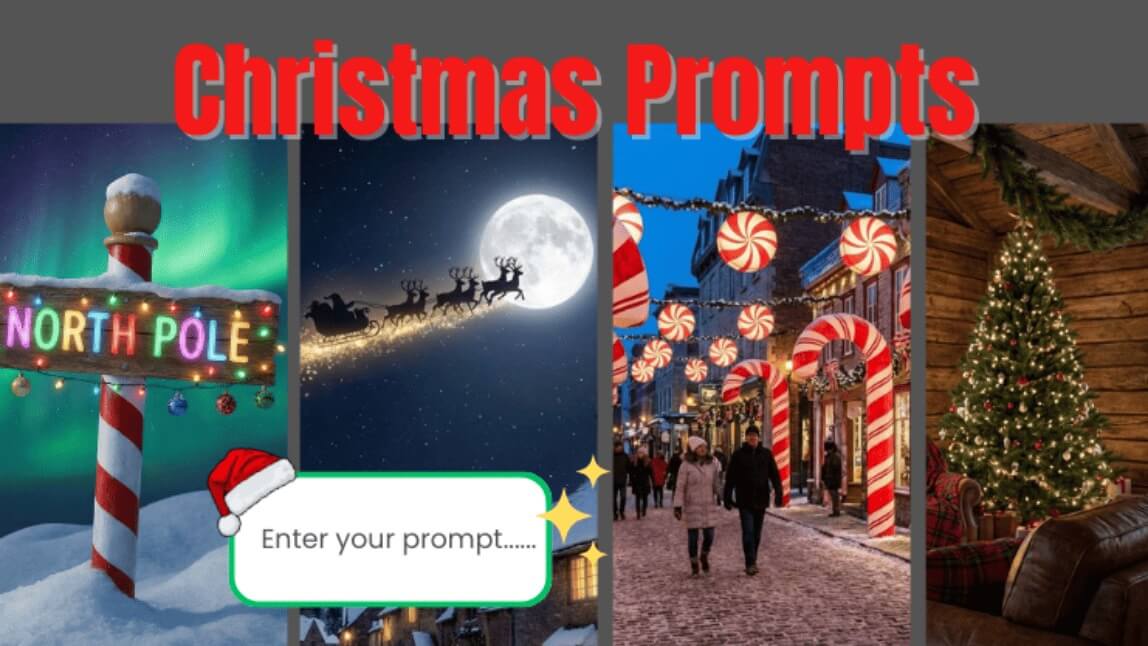
You can also keep things super simple and add Santa to your photo just by typing a prompt. Seriously—just enter something like “Santa standing by my Christmas tree,” and the AI will magically place a realistic Santa right into your picture.
No cutouts, no dragging, no adjusting. It’s the easiest (and laziest in the best way) way to make your own “Catch Santa in My House” photo!
When I tried this myself, the prompt method nailed the overall vibe on the first try, but Santa's position in the room shifted a bit each time I regenerated — worth trying the prompt 2-3 times if you want a specific spot.

1. Download the Santa Photo App: YouCam Perfect for free on App Store or Google Play.
2. Go to “Editing Agent”: Open the Editing Agent feature in the app to begin your AI editing process.
3. Select Your Photo: Choose the image you want to edit from your gallery.
4. Enter Your Prompts: Type in the prompts, like "Add a realistic Santa Claus in th scene", and let AI work.

Use Cut Out to Add Santa to Photo
1. Download the Santa Photo App: YouCam Perfect for free on App Store or Google Play.
2. Go to “ Photo Edit” and select a photo of your living room or your house.
3. Tap on "Add Photo" and choose a Santa image either from the app's stock library or your own gallery.

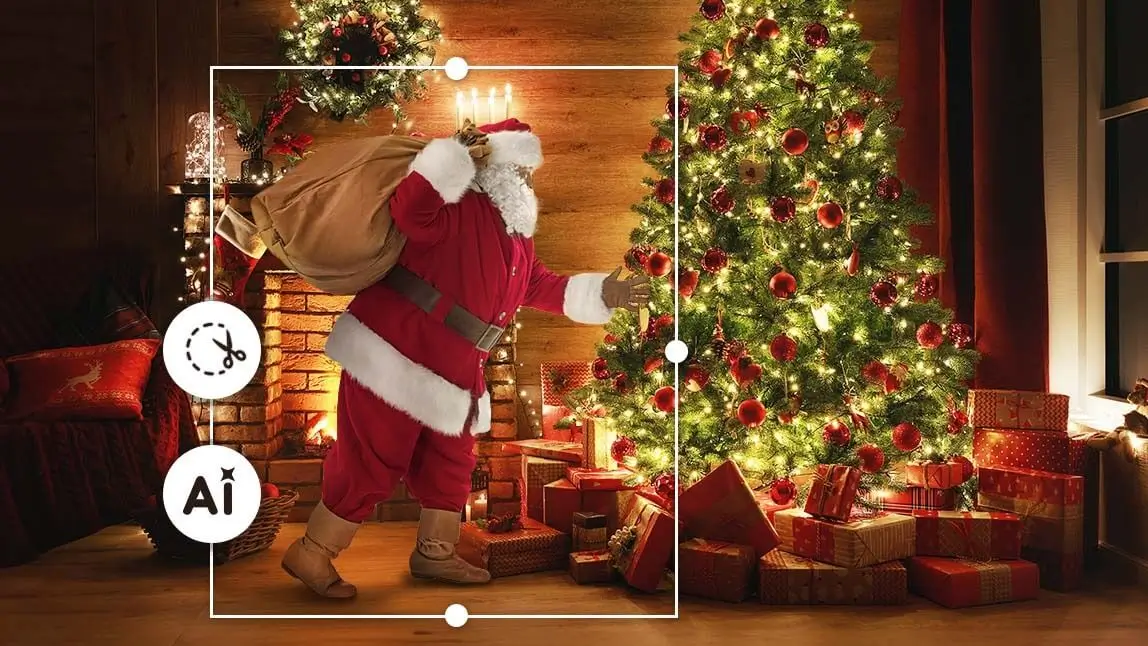
4. Tap on “Cut Out” and the AI tool would automatically cut out Santa from the photo.
Read more: How to Cut Something out of a Photo | Image Cutout App

5. Adjust the placement of Santa to make it look more natural.
6. Click on “Tool” and then find “Adjust” to fine-tune the parameters (brightness, contrast, etc.) to match the lighting and tone of your original photo.

7. Once you're satisfied with how your photo looks, save it to your camera roll!
The manual cutout took a few extra minutes, but it gave the most convincing result in my testing — the Adjust tool's lighting match made Santa look like he actually belonged in the room, rather than obviously pasted on top.
Make a Santa Photo with AI Replace
If you are too lazy to edit a "Catch Santa in My House" photo step by step, you can try using the AI tool in YouCam Perfect to generate a Santa in your picture!
With the AI Replace feature, you can easily add Santa to photo!
AI Replace landed somewhere in between the other two for me — quicker than the manual cutout, and gave a bit more control over Santa's pose than the plain prompt method did.
Read more: Angel Wings Photo Editor: How to Add Angel Wings to Your Photo

3 Ways to Add Santa to Your Photo: Which Should You Use?
Here's how the three methods compared after testing all three.
| Method | Best For |
|---|---|
| Prompt-based AI edit | Fastest results when you don't mind a bit less control over placement |
| Manual cutout + Adjust | The most convincing, natural-looking blend — worth the extra few minutes |
| AI Replace | A middle ground — quicker than manual cutout with more pose control than a prompt alone |
How to Make Santa Video with AI
Once you’ve created your Santa-themed image, take it one step further by turning it into a fun, animated video. With YouCam Perfect’s Image to Video feature, you can easily bring Santa to life—perfect for holiday pranks, festive greetings, or eye-catching social posts.
Step 1: Open the Image to Video feature
Launch YouCam Perfect and select the Image to Video tool from the editing menu.
Step 2: Upload your image
Choose your Santa image—this can be an AI-generated Santa, a photo of yourself dressed as Santa, or a festive edit you’ve already created.
Step 3: Enter your prompt
Describe how you want Santa to move or react. For example: “Santa smiles and waves at the camera” or “Santa looks surprised and laughs.” The clearer the prompt, the better the result.
Step 4: Generate and save
Tap generate, let the AI do its magic, then save your Santa video to share on TikTok, Instagram, or send directly to friends and family.
This simple process turns a static Santa image into a lively holiday video—an easy way to spread laughs and festive cheer with AI. 🎄
Best Apps to ‘Catch Santa in My House’
The best catch Santa apps to create the “evidence” of Santa being in your house are listed below. Read on to choose which one suits you the best!
1. Catch Santa in the House!

Available on: iPhone and Android
Rate: 4.8 and 2
Features: This Catch Santa app offers over 120 Santa poses and allows users to seamlessly edit Santa images into their photos. It also includes Christmas stickers to add festive vibes and various editing tools to make your Santa picture look realistic.
2. iCaughtSanta

Available on: iOS
Rate: 3.5
Features: iCaughtSanta is a fun photo editing app perfect for creating cute and whimsical Santa images. It also includes sticker packages that can be added to your photos, as well as the option to create personalized holiday photo cards.
3. Santa Live!

Available on: iOS
Rate: 4.4
Features: Santa Live! lets you create videos of Santa in your house! It offers multiple angles of a real-life Santa delivering gifts, and you can even edit yourself into the video, making it look like you met Santa in person!
Final Thoughts
If you're a parent, you should definitely try adding Santa to photos and get a “Catch Santa in My House” photo for your kids this Christmas.
Even if you’re not a parent, it's still a fun way to embrace your inner child and celebrate the holiday season!
Try taking a picture with Santa with YouCam Perfect now!