 Author: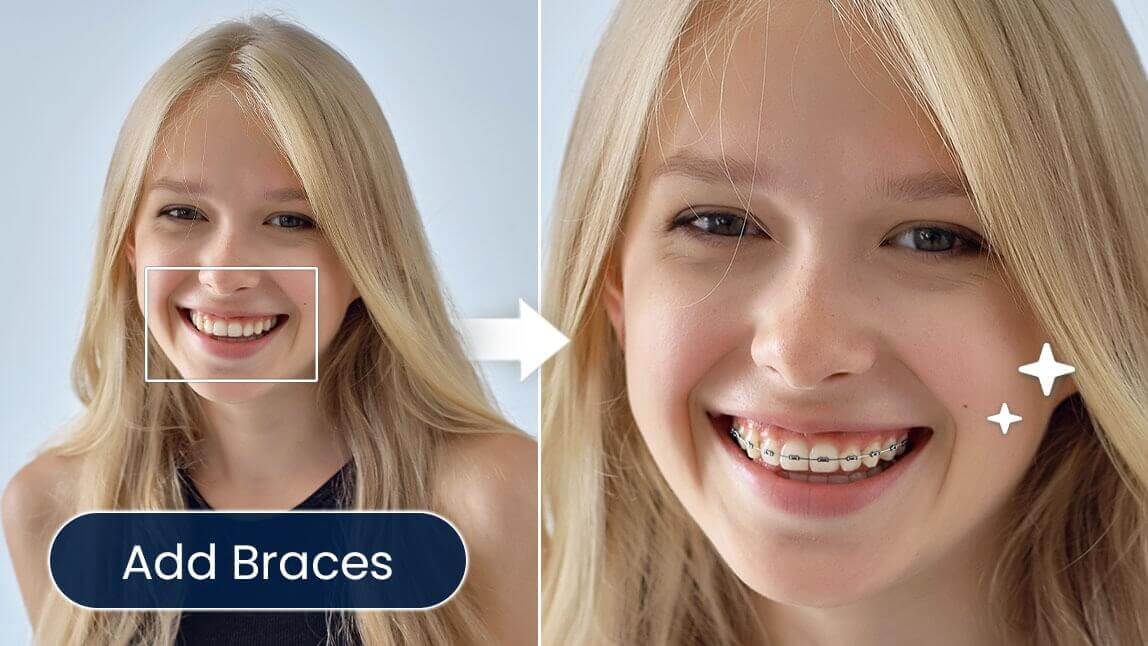
Have you ever wondered, “What would I look like with braces?”
With AI braces filters, you can now instantly preview metal braces, ceramic braces, lingual braces, or clear aligners — all without leaving your home or visiting a clinic.
Why Should I Try Braces Filter?
Trying a braces filter is a low-risk, tech-powered way to answer the question: “How would I look with braces?”
Instead of guessing, AI photo editing technology provides an instant, realistic preview—perfect for both practical decisions and creative fun. It’s also great for:
- Confidence building: Visualize your future smile before starting treatment.
- Decision-making: Compare different braces styles, colors, and looks.
- Social content: Create cute, trendy, and fun selfies with a fresh aesthetic.
- Low-pressure exploration: Test the idea of braces without any long-term change.
Perfect for teens, creators, or anyone curious—this filter helps you see your smile in a whole new way!
Best Braces Styles to Try With a Braces Filter
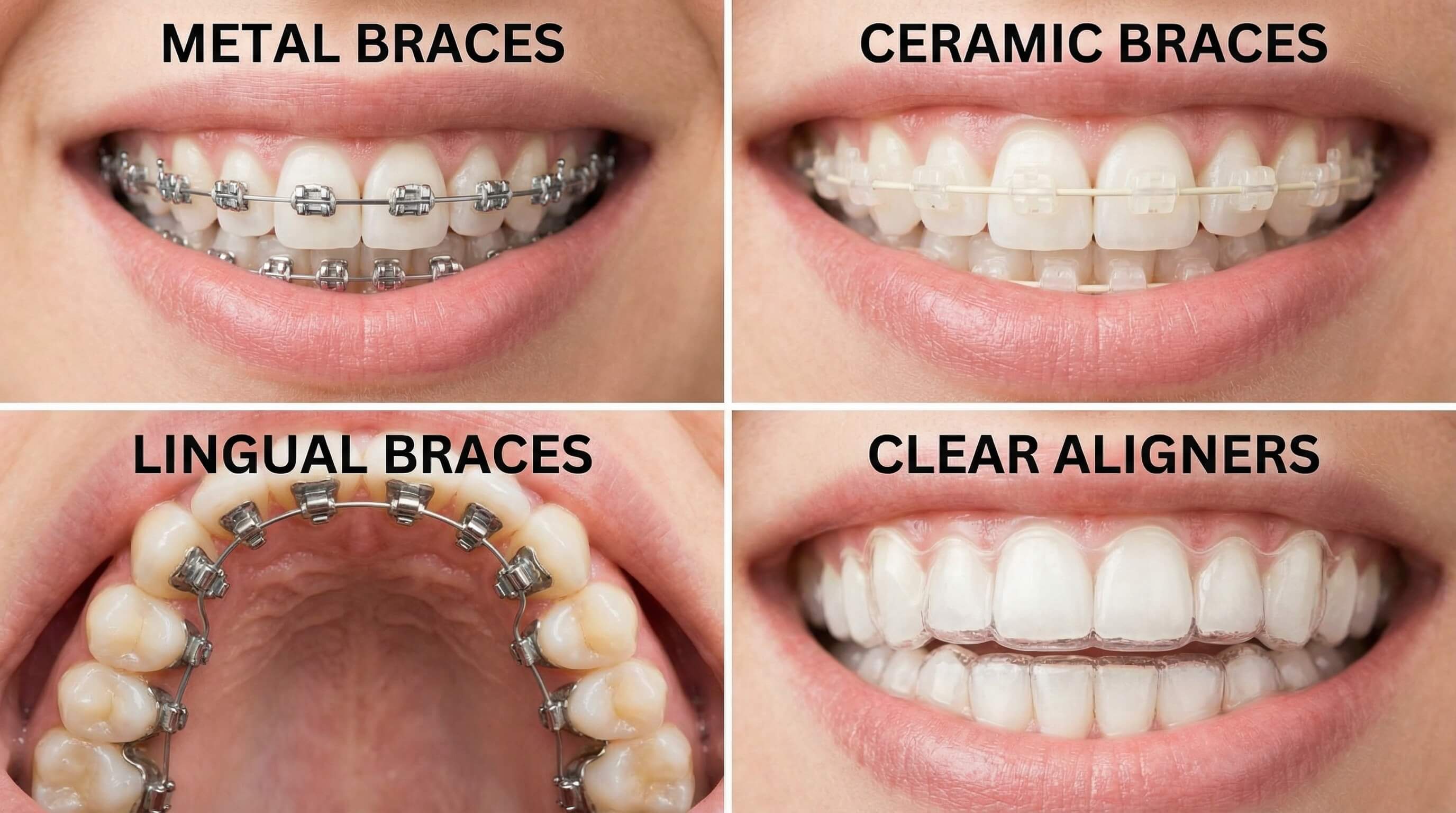
Not all braces look the same—and that’s why AI-assisted braces simulation in YouCam Perfect is so helpful:
- Metal Braces: Classic, visible, and bold—great for seeing a traditional orthodontic look.
- Ceramic Braces: More subtle than metal braces, blending naturally with teeth.
- Lingual Braces: Hidden behind the teeth for a discreet appearance.
- Clear Aligners: Nearly invisible and perfect for a clean, modern smile.
4 Ways To Know What Would I Look Like with Braces

Best AI Photo Editor
The Best AI Photo Editor & Selfie Camera.
Remove objects, add filters & more.
1. Use Braces Filter With AI Prompt
Want to see how you’d look with braces or add a fun touch to your smile photos?
AI Agent in YouCam Perfect uses advanced neural networks to automatically place realistic braces on your teeth, matching your facial features and lighting for a natural look.
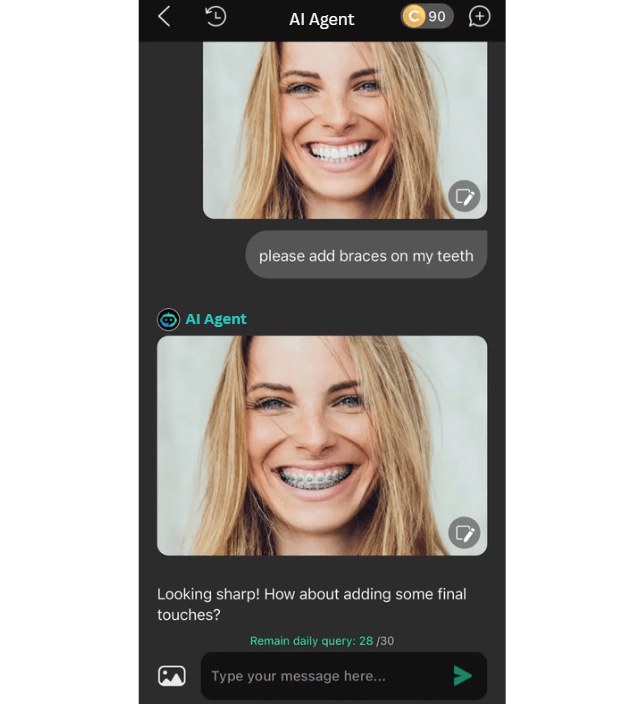
Here's how to use it:
- Download YouCam Perfect
- Open the AI Agent
- Upload Your Photo – Choose a clear image showing your smile.
- Enter the AI Prompt – Type a prompt like “Add realistic metal braces to my teeth”.
- Save and Share – Download your new smile or post it directly on social media.
2. Use AI Replace To Try Braces Filter
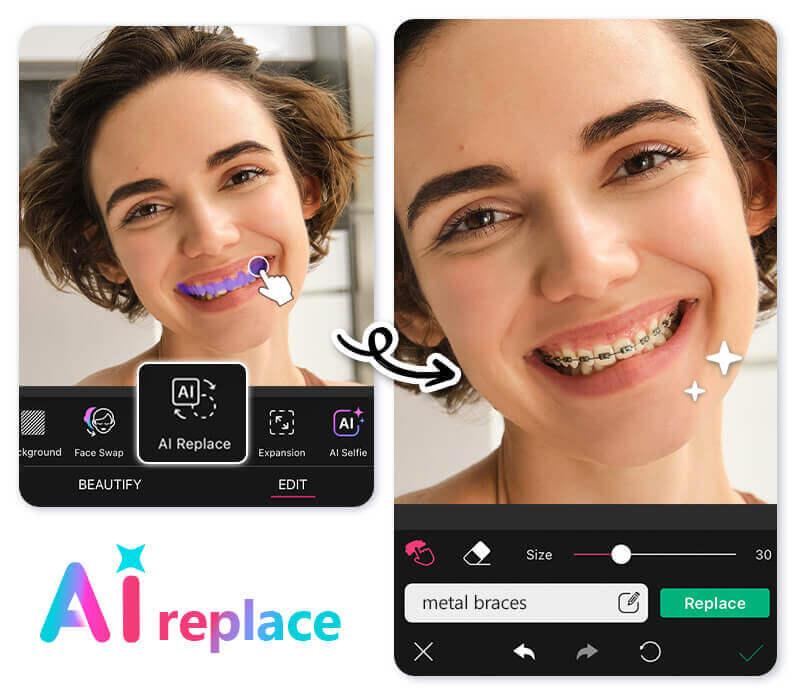
Besides social media filters, YouCam Perfect’s AI Replace feature lets you simulate braces using semantic segmentation technology:
- Tap "Photo Edit" and upload your photo
- Locate "AI replace" and paint on the teeth area
- Type prompt including the keyword "braces" in the text input field
- Press "Apply" for braces effect
- Save and share your braces editing result
Prompt suggestions: editing braces to teeth; metal braces; add invincible braces to teeth
3. Use Braces Filter Online
If you prefer AI braces filter online, here's one option for you: YouCam Online Editor. It has the same "AI Replace" feature like YouCam Perfect app.
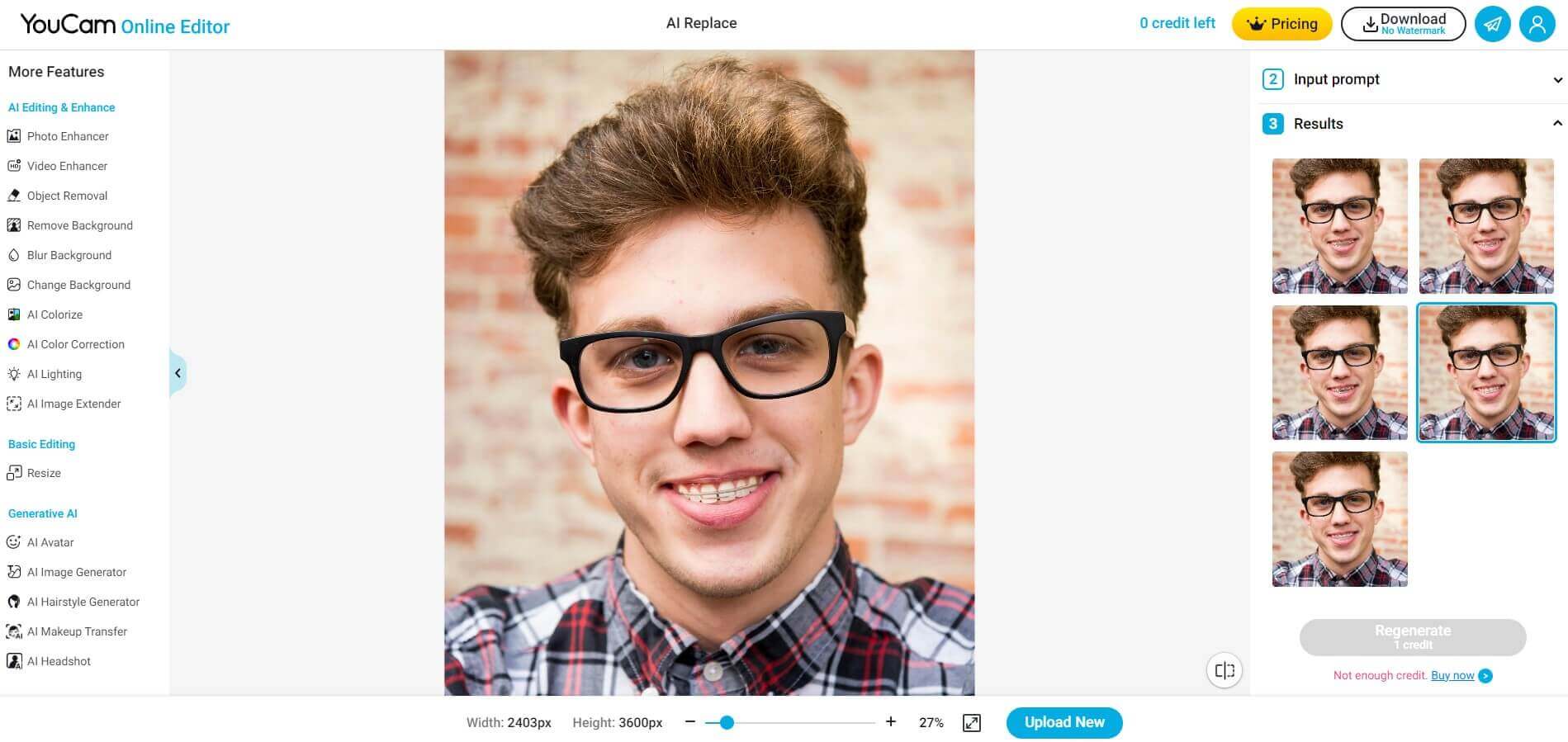
How it to try a braces filter online:
- Find the AI Replace tool from YouCam Online Editor (no signup required!).
- Tap on Choose an Image to upload your photo.
- Paint over the area you want to add the braces to. You can also zoom in the image, or change the brush size if needed.
- Enter the prompt "Braces" or "Metal Braces".
- Click on the Generate button.
- If you want to see other braces styles, you can click on Regenerate, which will cost 1 credit each time.
You will have 5 free credits to start with, so make sure to use them wisely!
4. Braces Filters on Social Media
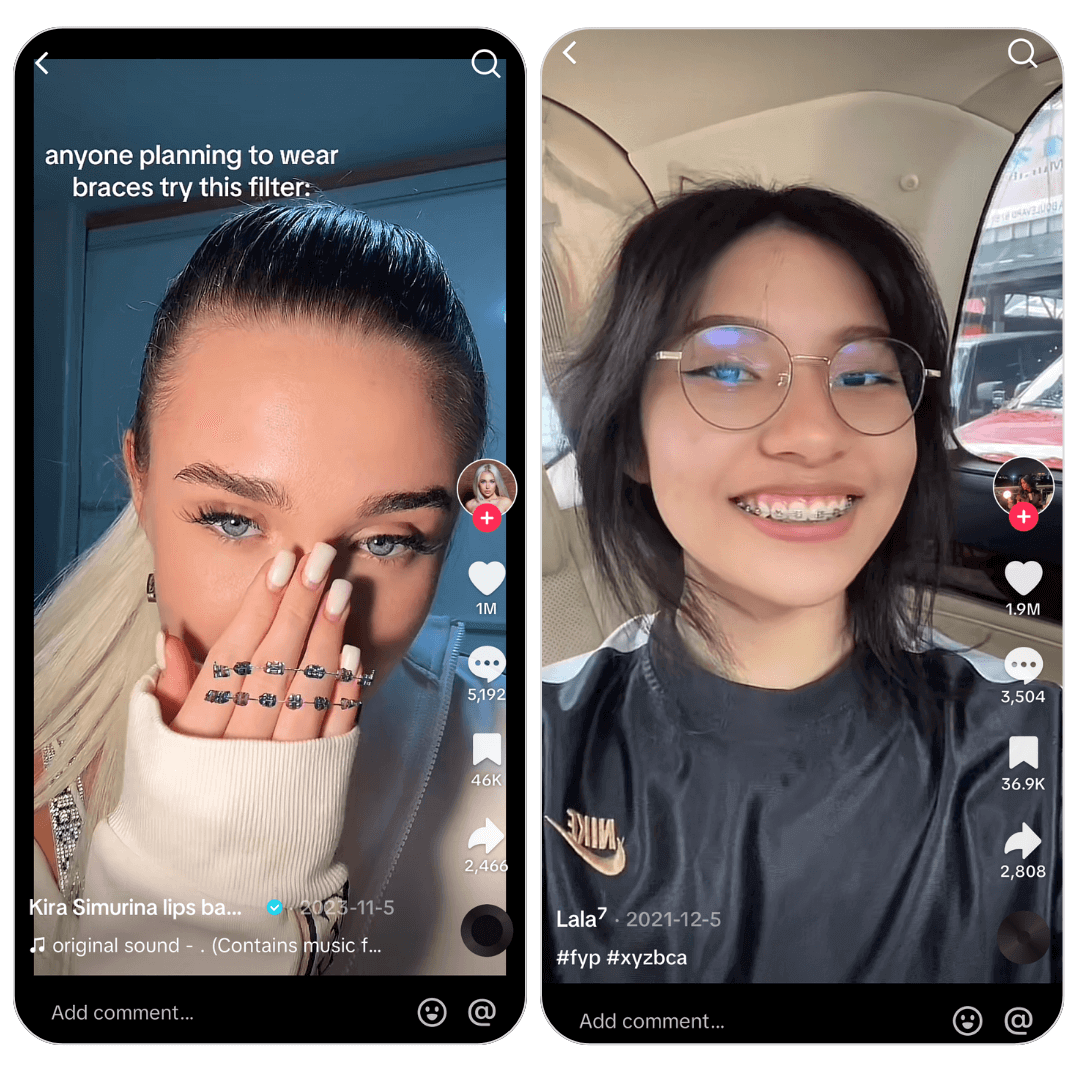
While primarily known for its short-form videos, TikTok also offers fun braces effects for users to play around with. You can type "braces filter" or "AI Braces" in the search bar and browse through all the before/after braces effect results from other creators.
If you're also up to this trend, start creating engaging content by adding braces to your smile and sharing it with your followers!
Why You Should Try YouCam Perfect for Braces Filter
Aside from trying braces filters, YouCam Perfect’s AI-powered tools let you enhance your smile in multiple ways:
#1: Remove Braces from Photos

Once you got braces, you may sometimes want to remove them from your photo, just to get a perfect smile.
In YouCam Perfect, you can easily edit out braces from your teeth in photos using the 'AI Remove' feature! Just highlight the braces, let the AI do its thing, and bam! Your photo looks as natural as ever, with no traces of edits.
Related Post: No Braces Filter - How to Remove Braces from Photos With AI
#2: Straighten Teeth in Photos
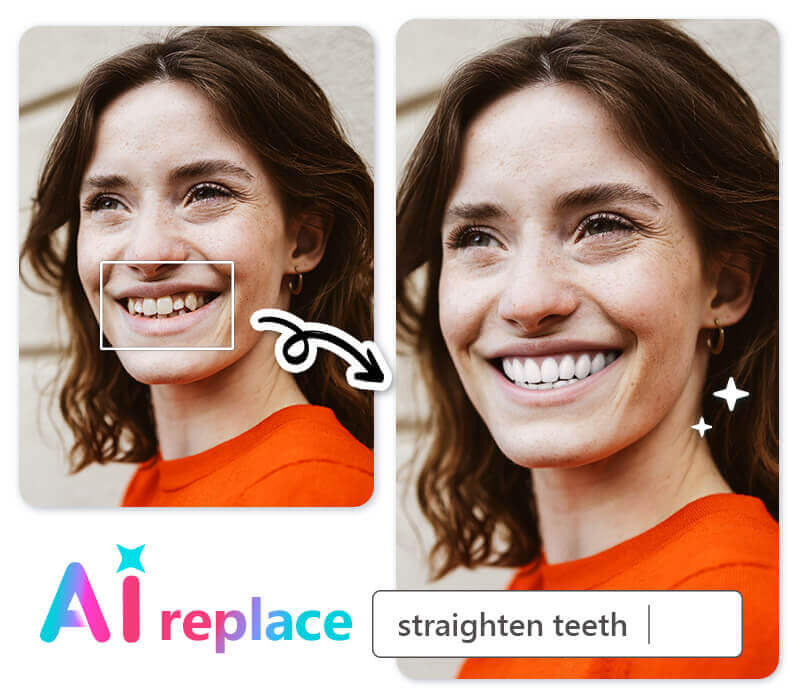
Who doesn't want a killer smile in their selfies? Whether you are just curious and want to see what they'd look like post-braces or simply want a quick fix, you can easily achieve the result by entering the "straighten teeth" prompt in the AI Replace feature while highlighting your teeth in pictures.
But hey, remember, while it's fun to play around with photo edits, celebrating your natural beauty and uniqueness is just as important.
#3: Add a Smile with Beautiful Teeth to Photos
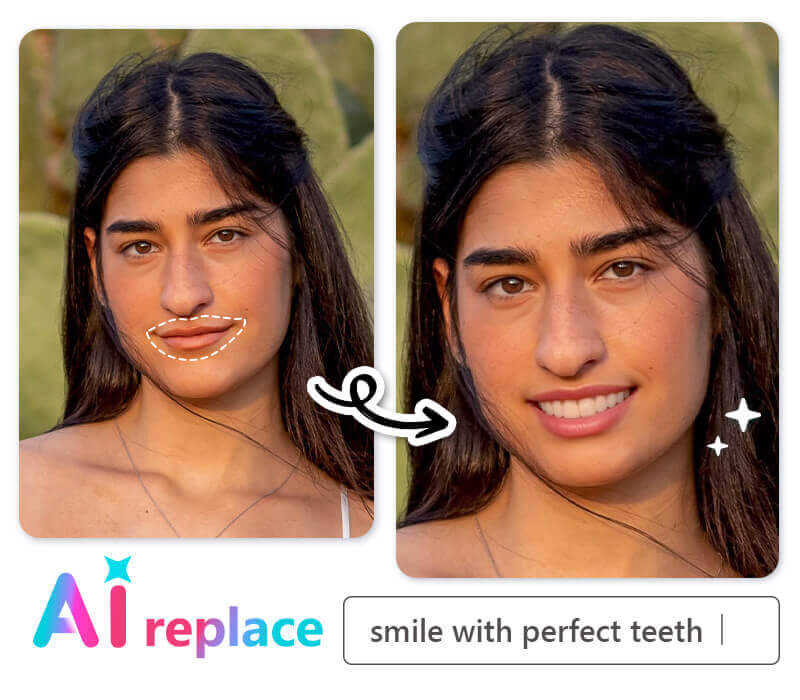
We all know how a killer smile can take a photo from 'meh' to 'wow,' but a smile with perfect teeth? That's a double kill! Not only can you add or remove braces from photos, but you can also enhance your smile to showcase a set of beautiful, white teeth.
Type "smile with perfect teeth" in the text input filed in our AI Replace feature after painting the teeth area in your selfies, and you will immediately get a gorgeous shot with smiling teeth!
#4: Whiten Teeth in Photos

Everyone desires a dazzling white smile, but achieving this in real life can be expensive, time-consuming, and sometimes painful. However, with just a few taps on the YouCam Perfect app, you can attain this look just like applying a filter. It's a simple, pain-free, and safe alternative to actual teeth whitening procedures.
To locate the teeth whitening tool:
- Begin by uploading the photo you want to modify.
- Then, select the "Beautify" option at the bottom of your screen.
- Finally, navigate to the "Teeth Whitener" feature.
Top 5 Braces Filter Tools
If you’re exploring how you’d look with braces using AI-driven simulation, facial recognition, and neural rendering technology, here are the top tools — from mobile and web to creative AI editors — along with their pros and cons for easy comparison:
YouCam Perfect
YouCam Perfect uses AI Editing Agent, semantic segmentation, and real-time facial recognition to place realistic braces on your teeth.
Features: Try metal, ceramic, lingual braces, clear aligners; plus smile enhancements like whitening and teeth straightening.
YouCam Online Editor
YouCam Online Editor is a browser-based AI Replace & prompt-driven editing for virtual braces previews online.
Features: No app download, instant braces preview with adjustable styles.
NanoImg.io
NanoImg.io uses advanced facial recognition and smile detection AI automatically detects teeth and aligns braces.
Highlights: Supports multiple braces types including creative and colorful styles.
Kaze AI
Kaze uses AI-powered precision detection applies ultra-realistic braces on selfies or headshots.
Use Cases: Fun social posts or orthodontic preview editing.
QuickImg
QuickImg uses AI-powered teeth position detection with automated braces application.
Features: Upload multiple photos and try metal, clear, or colored brackets.
Braces Filter Summary Comparison
| Tool | Best For | Pros | Cons |
| YouCam Perfect | Full AI smile suite | Powerful AI + features | App needed |
| YouCam Online Editor | Browser braces + editing | No download | Limited free credits |
| NanoImg.io | Orthodontic + creative braces | Batch + styles | Watermark free requires upgrade |
| Kaze AI | High-res braces preview | Precise AI detection | Fewer options |
| QuickImg | Creative multi-photo braces | Customizable styles | Needs clear images |
Tips for the Most Realistic Braces Filter Results
To get the most natural-looking results from a braces filter, your photo editing setup matters. Follow these tips for best results:
- Use a clear, front-facing smile photo
- Good lighting matters – avoid heavy shadows or filters
- Zoom in on teeth when using AI Replace
- Paint only the teeth area for precise AI placement
- Try specific prompts like: “Add realistic ceramic braces to my teeth with natural lighting”
Final Thoughts
Best AI Photo Editor
The Best AI Photo Editor & Selfie Camera.
Remove objects, add filters & more.
Trying a braces filter is a fun and simple way to answer the question: “What would I look like with braces?”
Whether you’re curious about traditional metal braces, clear aligners, or just want to play with a new photo effect, YouCam Perfect and YouCam Online Editor make it easy to explore different styles in seconds.
How Would I Look with Braces FAQs
Is there a filter that gives you braces?

Yes, many social media platforms like Instagram and TikTok have filters that give users a quick view of how they look with braces.
▶ TikTok
Open the TikTok app on your device.
- Tap the ‘+’ icon to create a new video. Tap “Effects” on the left side.
- Use the search bar to find the “Braces” effect.
- Tap on the braces filter to apply it.
- Launch the Instagram app on your phone.
- Swipe right from your feed or tap on your profile picture with the “+” symbol.
- Swipe through the effects at the bottom and tap on “Browse Effects”.
- Use the search bar to find the “Braces” effect.
- Tap the filter to try it and save by tapping the save icon.
How can I see how would I look with braces?
To visualize yourself with braces, simply upload a picture of you smiling with teeth in YouCam Perfect, locate AI Replace, and highlight the teeth area with prompts such as "metal braces," then you'll get a digitally altered image showing you with braces!
Is there an app to try on braces filter?
Yes, you can type in braces simulator, or braces visualizer to find these types of apps.
YouCam Perfect is an app that not only allows users to try braces to see how they look like. For those looking to see what they'd look like without their braces, the 'AI Remove' feature can remove them from your photos, providing a natural-looking result in seconds.
Moreover, this powerful app supports other teeth editing features including adding white teeth to photos and straightening teeth in daily shots.
What is the best app to try a braces filter?
YouCam Perfect is one of the most popular apps for braces filters. It lets you preview different styles, edit your photos with braces, or even remove them for a natural smile.
Can I try a braces filter online?
Yes, YouCam Online Editor has a free AI braces filter you can use directly in your browser. Just upload a photo, select the teeth area, type “braces,” and instantly see the effect.