 Author:



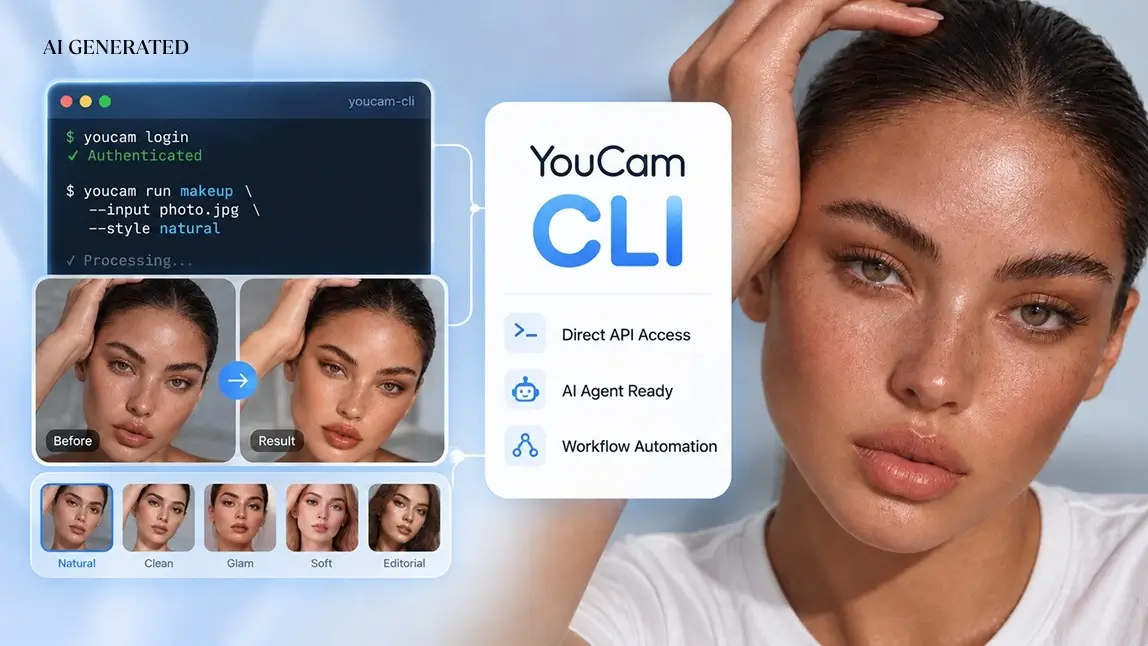
The new YouCam CLI is a command-line tool that lets developers and AI agents run YouCam AI features straight from a terminal. You install one npm package, log in once with your YouCam API key, and then call skin analysis, virtual try-on, background removal, video enhancement and other YouCam AI APIs with a single command each. The same commands work inside AI coding agents such as Claude Code, Codex and more.
This post explains what the YouCam CLI is, how it compares with the YouCam MCP servers and Agent Skills, what teams can build with it, and how to run your first command. All you need to start is a free API key from the YouCam API Console.
What Is the YouCam CLI?

A CLI, or command-line interface, is a tool you control by typing commands instead of clicking through a web page. The YouCam CLI turns the YouCam API into a set of simple commands. It installs as the @youcam_cli/youcam-cli package, and every command starts with youcam.
Each feature API, from AI skin analysis to AI clothes virtual try-on, is packaged as its own command, so you call exactly the feature you need. The CLI also includes commands for checking your unit balance, and a helper command that lists the available makeup try-on patterns by name, which makes it easier for an AI agent to pick the right look. More APIs will be added to the CLI over time.
Because it runs in any terminal, the CLI fits both people and agents. A developer can test a feature in seconds, a script can process a folder of images, and an AI coding agent can read the documentation, then run the right command when you ask for something in plain language.
YouCam CLI vs. MCP Servers vs. Agent Skills
The CLI is the third way to connect YouCam AI to your tools, next to the YouCam MCP servers and the ready-made YouCam API Agent Skills. All three use the same API key and the same API plan.
| Option | How it connects | Best for |
|---|---|---|
| YouCam CLI | One npm install. Each AI feature is a terminal command. | Scripts, terminal workflows and coding agents that run shell commands, when you want direct control over each call. |
| MCP servers | Add a server configuration to an MCP client. There are three domain servers: Beauty & Personal Care, Fashion & Retail, and Creators. | Chat-based assistants that support MCP, where the agent picks the right tool from a domain. |
| Agent Skills | Install a packaged Skill that selects and calls the required APIs for you. | Complete, multi-step tasks such as a beauty consultation, with no setup per API. |
You can compare all three setups on the YouCam MCP, Agent Skills and CLI page, where the CLI has its own tab.
What You Can Build with the YouCam CLI

The CLI covers the YouCam AI features across beauty, fashion, image and video, so the use cases follow the needs of each team. A few examples:
- Agent-driven visual tasks. Ask a coding agent to "run a skin analysis on this photo" or "try this dress on the model photo," and it runs the matching command and returns the result.
- Scripted image pipelines. Ecommerce and content teams can call the AI Clothes Changer API, background removal or other image features from their own scripts, one command per image.
- Fast prototyping. Product teams can test a feature such as the AI Skin Analysis API on real photos before planning a full app integration.
- Video workflows. Creators and agencies can send clips to the AI Video Enhancer API without building an interface first.
- Usage checks. Developers can check their remaining units from the terminal before running a larger job.
How the YouCam CLI Works

The CLI follows the same pattern as the YouCam API: you start a task, then collect its result. It takes four steps.
1. Install the CLI
Install the @youcam_cli/youcam-cli package globally with npm, then run the help command to confirm the youcam command works and see the list of available features.
2. Log in with your API key
Authenticate once with your YouCam API key. The CLI saves the key and uses it for every request after that, so you don't paste it into each command.
3. Run a feature
Run the command for the feature you need and point it to your source file, such as a portrait photo. The CLI starts a task on the YouCam API and returns a task ID.
4. Check the status and get the result
Because YouCam AI tasks run asynchronously, you check the task status with its ID. When the task is done, the status command returns the result.
The commands for each step are shown in the image above. Each feature also has its own options, such as a garment image for clothes try-on or a shade for hair color. The exact options for every command are in the YouCam API documentation.
Free to create in the API Console
One key works across the CLI, the MCP servers and Agent Skills.
What You Need Before You Start
| Requirement | Details |
|---|---|
| Node.js and npm | Used to install the @youcam_cli/youcam-cli package globally. |
| YouCam API key | Free to create in the API Console. You log in with it once. |
| A terminal or AI agent | Any terminal, or an AI coding agent that can run commands, such as Claude Code, Codex and more. |
| Source files | The photo or video for the feature you run. Each feature's file requirements are listed in the documentation. |
| API units | Commands use units from your existing YouCam API plan. The CLI itself has no extra charge. |
Using the YouCam CLI Responsibly
Many YouCam AI features analyze or edit faces, skin, hair and bodies. When you run them, from a script or through an agent, keep these practices in place:
- Get consent. Only process photos and videos of people who have agreed to it, and follow the privacy rules that apply to your business.
- Keep a human in the loop. Review results before they reach customers, especially when an agent runs commands on its own.
- Describe results accurately. Skin analysis is a cosmetic analysis, not a medical diagnosis, and try-on results are visual previews.
Perfect Corp.'s approach to data protection is outlined on its compliance page.
How to Get Started
Getting from zero to your first result takes a few minutes:
- Create a free API key in the YouCam API Console.
- Open the CLI tab on the YouCam MCP, Agent Skills and CLI page and copy the install and login commands.
- Run your first feature, then check its status to get the result.
- Use the YouCam API documentation for each feature's options, and review the YouCam API plans before scaling up.
If you already use the YouCam MCP servers or Agent Skills, you can keep your current key and plan. The CLI simply adds a direct, scriptable way to call the same features.
Install, log in, run
Find the CLI tab next to the MCP servers and Agent Skills.
FAQ
Do I need an API key to use the YouCam CLI?
Yes. Create a free key in the YouCam API Console, then log in once with the CLI's login command. The CLI saves the key and uses it for every request.
How much does the YouCam CLI cost?
The CLI has no separate charge. Each command uses units from your existing YouCam API plan, the same way a direct API call does. Plans are listed on the YouCam API pricing page.
What is the difference between the YouCam CLI and the YouCam MCP servers?
The MCP servers connect YouCam AI to chat clients that support MCP, grouped into three domains. The CLI turns each feature API into a terminal command, so it fits scripts and coding agents that run shell commands. Both use the same API key.
Which AI agents can use the YouCam CLI?
Any agent that can run terminal commands can use it, including Claude Code, Codex and more. Give the agent the documentation, describe what you need in plain language, and it runs the matching command.
Which YouCam AI features are available in the CLI?
Every feature API is packaged as its own command, including skin analysis, makeup and look try-on, hairstyle and hair color, clothes try-on, background removal, face reshape and video enhancement. More APIs will be added over time. Run the help command to see the current list.
Why does the CLI return a task ID instead of the result?
YouCam AI tasks run asynchronously, so larger images and videos don't block your terminal or script. Use the status command with the task ID to get the result once processing is done.
Conclusion
The YouCam CLI gives developers and AI agents the most direct way to use YouCam AI: one install, one login, and one command per feature. It complements the MCP servers and Agent Skills, uses the same key and plan, and will grow as new APIs are added. If you build with terminals, scripts or coding agents, it is the quickest path from an idea to a real result.
Start with a free API key
One install, one login, one command per feature.
This article was edited and reviewed by the Perfect Corp. editorial team. Welcome to contact us or give us more suggestions.