 Author:
Have you ever wished you could add a person to a photo, like your friend or family member? In the past, this required expensive software and expert editing skills. But now, you can do it with the free YouCam Perfect photo editor to insert someone into a picture.
In this blog post, we’ll show you how to use the app to seamlessly add people to photos using AI.
How to Add a Person to a Photo with AI
If you’re searching for how to add a person to a photo, how to photoshop a person into a picture, or how to edit someone into a picture, AI photo editing is now the easiest solution.
With YouCam Perfect, you can add someone to a picture for free on iPhone and Android—no Photoshop, no manual cutouts. The AI handles all the complex work for you, including subject detection, background blending, and color correction, so the final image looks natural and realistic. Follow these steps to create realistic, seamless images:
Step 1: Open the AI Agent

Best AI Photo Editor
The Best AI Photo Editor & Selfie Camera.
Remove objects, apply filters & more.
Launch YouCam Perfect and select AI Agent on your device. This smart assistant understands simple instructions, so you don’t need to switch between multiple editing tools.
Step 2: Upload Your Photo
Select your background photo first, such as a group photo or scenic image. Then upload the photo of the person you want to add.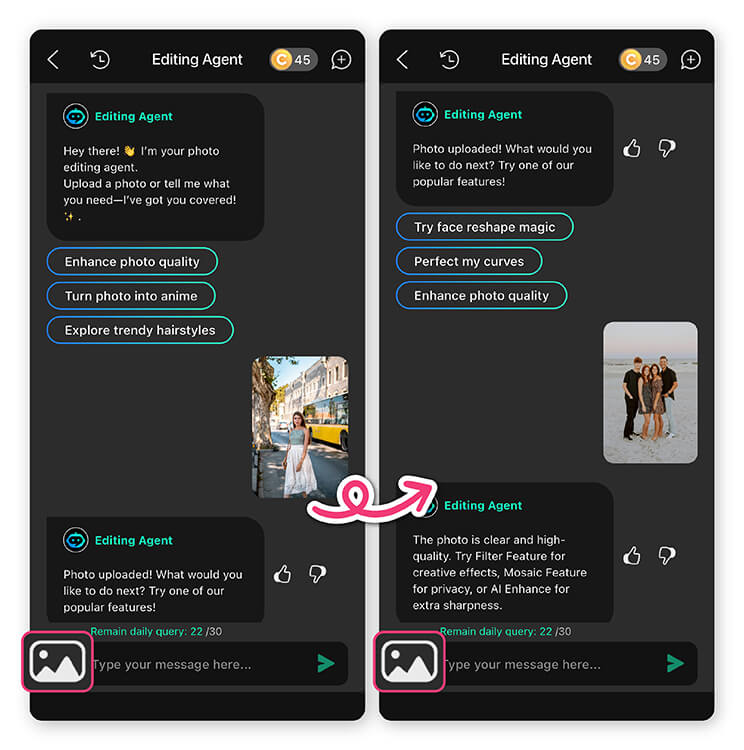
Step 3: Enter a Simple Command
Describe what you want in one sentence, for example: “Add this person to the group photo and make it look natural.” The AI will take care of positioning, sizing, and blending.4. Let the AI Work Its Magic
Step 4: Generate and Save
Once the edit is complete, review the result. If you’re happy with it, save the photo to your device or share it instantly with friends and family.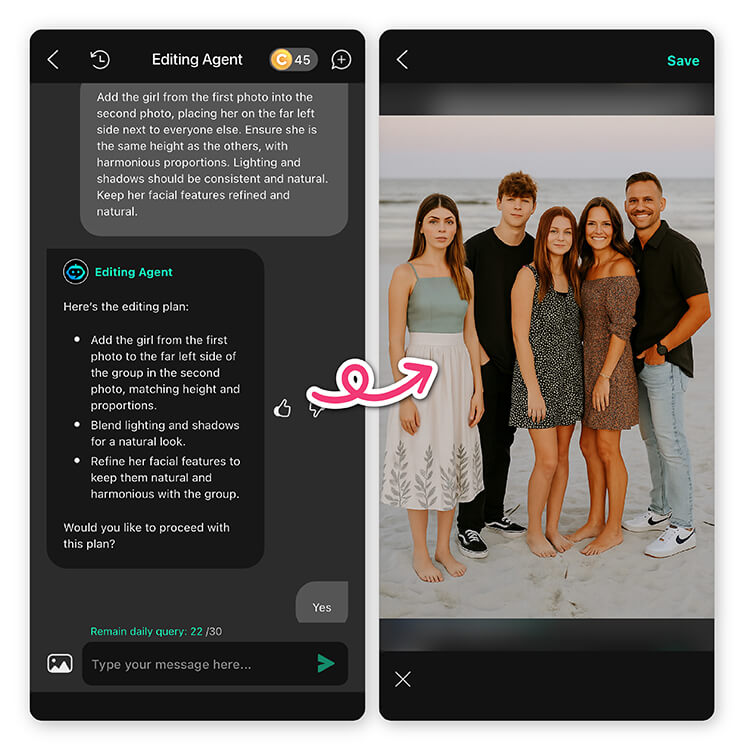
How to Photoshop a Person into a Picture Manually

Best AI Photo Editor
The Best AI Photo Editor & Selfie Camera.
Remove objects, apply filters & more.
Prefer more control? Here’s how to manually edit someone into a photo using AI tools.
Step 1: Photoshop a Person into a Picture
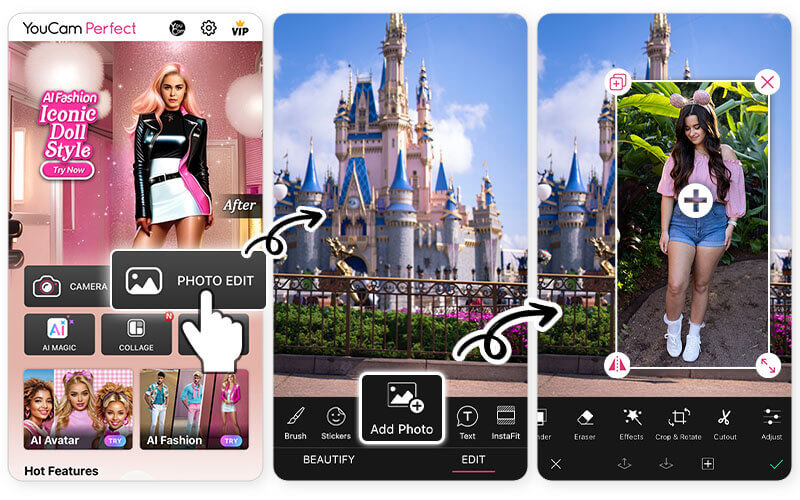
▲ Photoshop someone into a picture just like this
Next, tap Photo Edit, and select the photo that you want to add people to. This image will be the background layer for your result image.
You can choose a photo that you’ve already taken, or take a new one using your phone’s camera. Then press "Add Photo" to add a figure picture.
Step 2: Add the Person to Another Photo
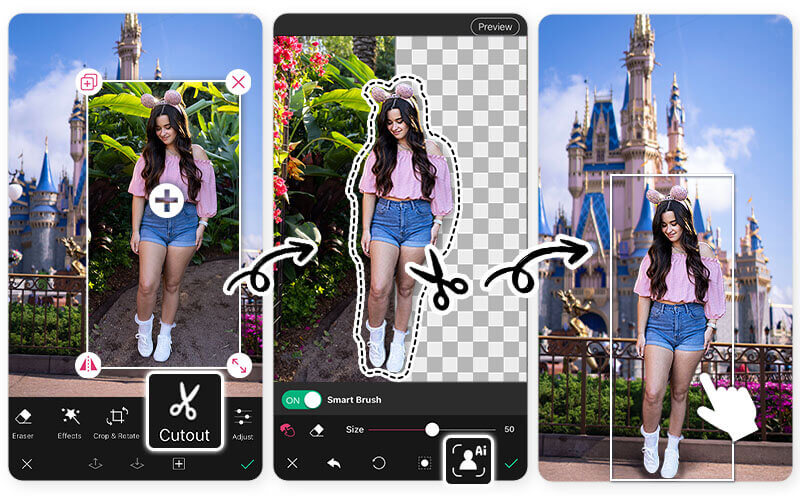
Once you have added the second photo to your background, you can use the Cutout tool in the app.
The YouCam Perfect cutout tool is powered by AI, which means it will automatically detect the subject and leave it clean and ready to be added to the first photo or background.
👉 Read more: How to Cut Out Faces and Objects From Images
Step 3: Save the Photo with Person Added
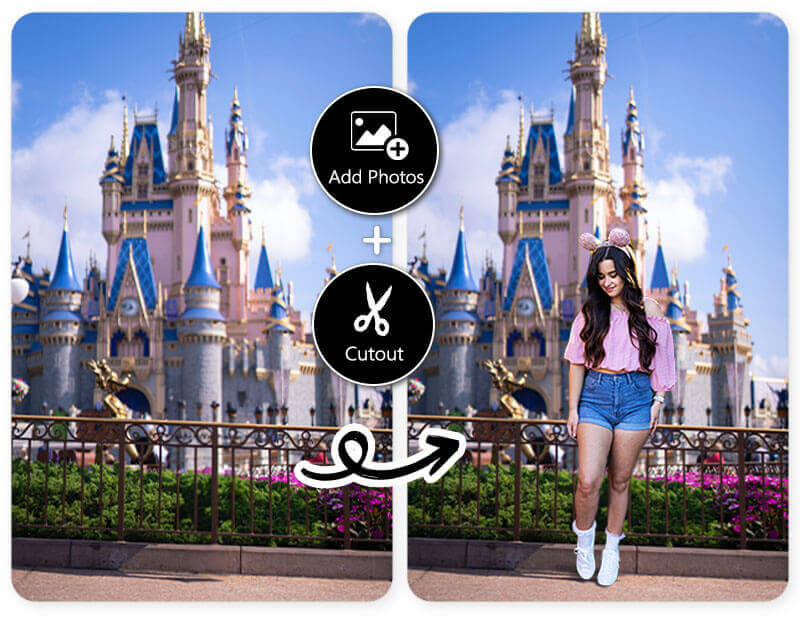
The result is so natural that no one will even realize that you've just cropped a person into a picture!
Why Add People to Photos? 6 Use Cases
Adding people to photos can not only be used to complete a group photo but also for other creative uses! Explore now and find some inspiration for your next photo edit!
1. Photoshop Someone into a Picture
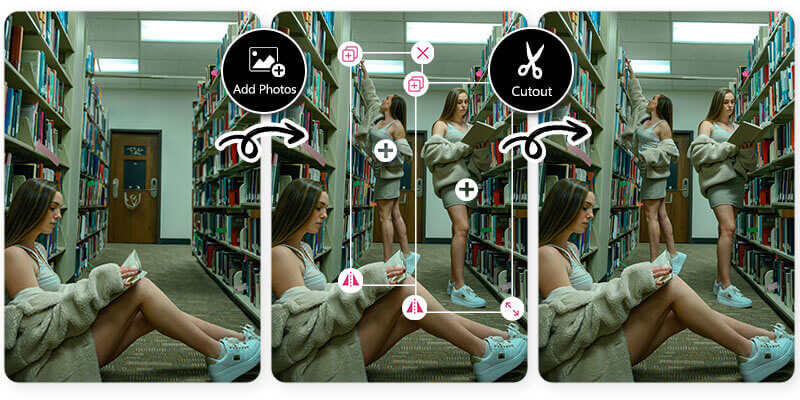
The tool used for adding people to the photo can also be used to clone the person in the photo! Adding more photos and repeating the process can make it seem like you are everywhere in the photo for a surreal effect.
👉 Read more: How to Add a Picture to a Picture for Free
2. Add a Person to Group Photo
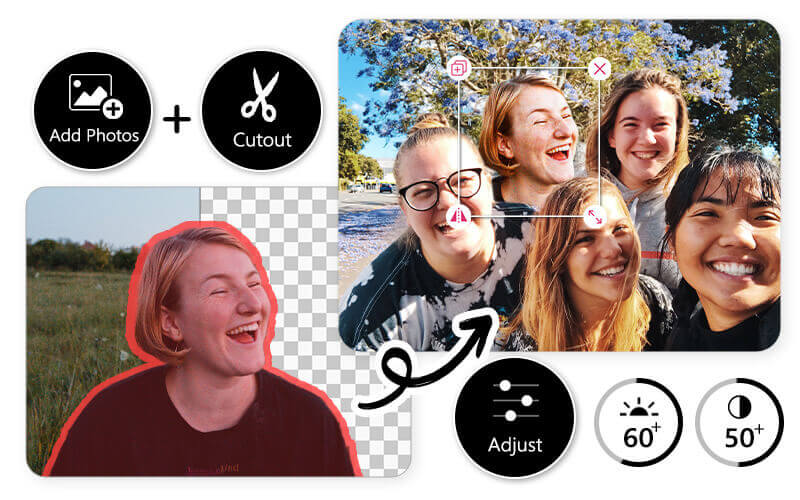
The most useful case is of course photoshop someone into a group photo. With the YouCam Perfect app, you can also easily adjust the lighting and color for the added photo, so the effect can be the most natural!
3. Photoshop Someone into Background
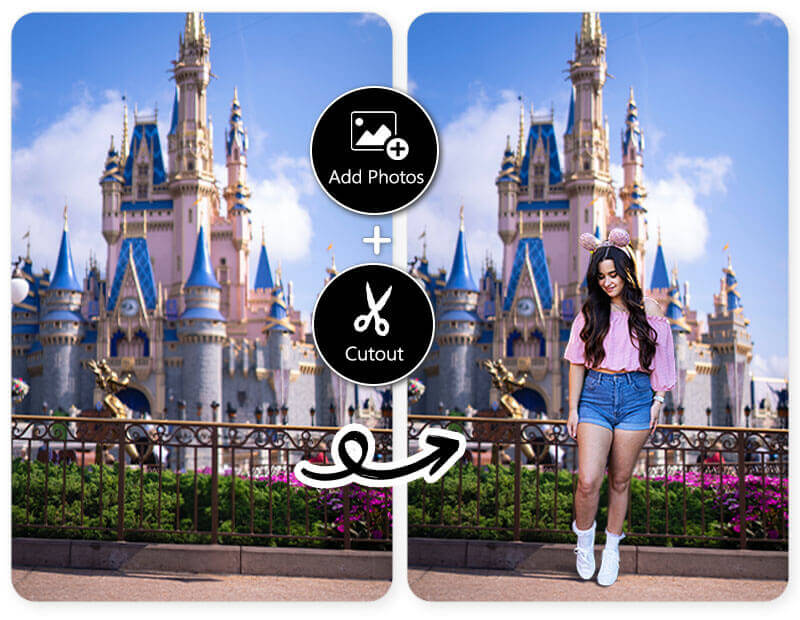
Think you will look good in certain scenery? With the YouCam Perfect app, you can photoshop someone into any background seamlessly. It can also be used to test if your outfit matches a certain backdrop, which is useful for wedding and photoshoot planning.
4. Photoshop Yourself to a Great Body
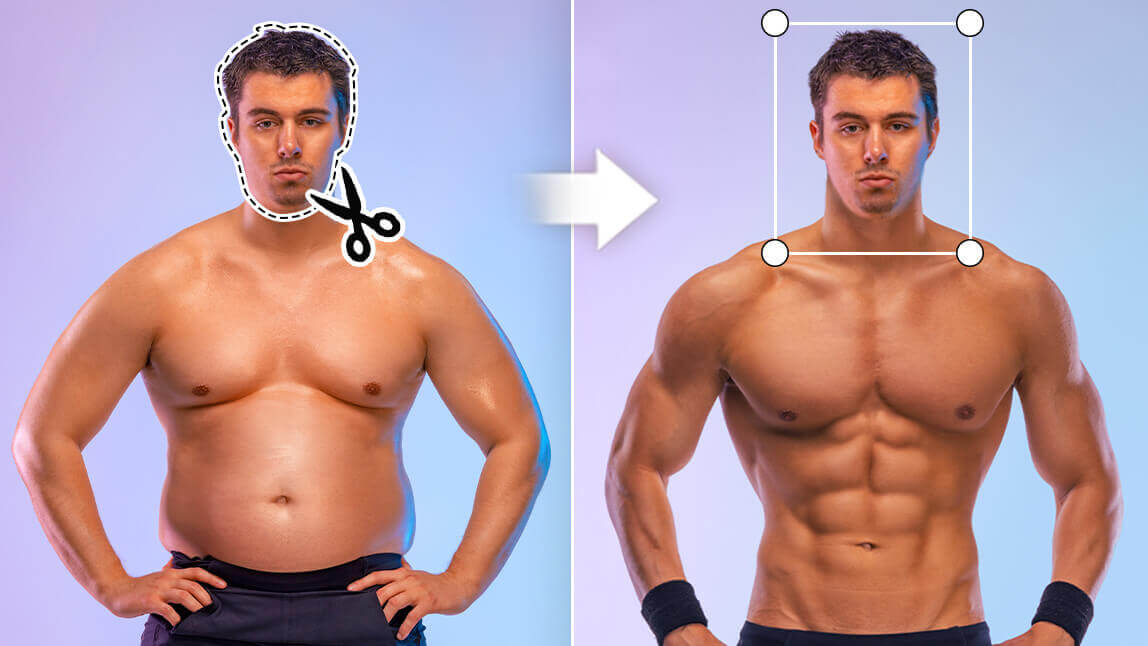
And lastly, you can always use Photoshop to give yourself a fun new look. Why not? It's a great way to see yourself in different outfits or body shapes, and the possibilities are endless.
Or, you could even Photoshop your friend's face onto a celebrity in a movie scene just to give them a good laugh!
5. How to Add a Boyfriend (or Girlfriend) to a Photo
To add a boyfriend or a girlfriend to your photo, you can try 2 features: AI Replace, and Cutout.
👉AI Replace
- Tap on the feature "AI Replace", which you can find at the homepage
- Upload a photo of yourself
- Use the brush to highlight the area you want to replace
- Type in prompts like "a handsome guy" and click on Replace

6. Add Passed Away Loved Ones to a Photo
YouCam Perfect also makes it easy to add a photo of a deceased loved one into another image using the Cutout and Add Photo features.
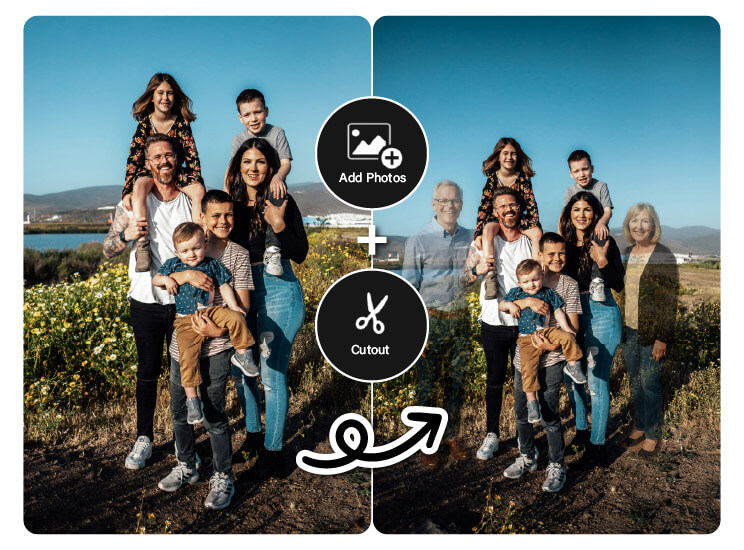
The steps are similar, make sure to:
- Tap Add Photo and select the cutout you saved.
- Drag to position and resize it as needed.
- Use editing tools like shadow or opacity to blend it naturally.
Add People to Photos with YouCam Perfect
Whether you’re fixing a group shot, adding a friend who couldn’t be there, or just having fun with edits, YouCam Perfect makes it simple. With tools like AI Cutout, your picture will look natural in just a few taps. This is a great example of how the AI Photo and Video Apps are transforming everyday editing, making advanced tools accessible to everyone.
So next time someone misses out, don’t worry—just open the app and add people to your photos to keep the memory complete. 🎉
About the Editors

The PERFECT Corp. Editorial Team
We are a team of experts on photo and video editing apps. Our goal is to deliver engaging content on everything from stunning selfie edits to eye-catching video effects. We cover the latest trends and share niche tips to help you master digital creation.
Discover more about us:
How to Add Someone to a Photo FAQs
How do I add a person in a photo on mobile?

Adding a person to a photo on mobile is easy with YouCam Perfect. Upload your base image, then import another photo and use AI cutout tools to remove the background and place the person into your picture. It works on both iPhone and Android, with no advanced editing skills needed.
How do you add someone to a picture for free?
To Photoshop someone into a picture for free, you can use online editing tools or apps. Take YouCam Perfect for example, here's how to add person to a picture for free:
- Start by downloading the YouCam Perfect app from Google Play Store or App Store
- Choose 'Photo Edit' and select the main picture within the app
- Tap on the 'Add Photo' tool to paste the photo of the person onto the main picture
- Click on 'Cutout' to remove the person from their original photo and blend them naturally into the main picture
How do I photoshop a person into another photo?
You do not need Photoshop to add a person into another photo. With YouCam Perfect, AI powered cutout tools help you remove backgrounds and place people into new photos in just a few taps. It is a faster and more beginner friendly way to achieve professional looking results on your phone.
How to add a person to a photo online free?
If you are looking to add someone into a picture from your desktop, here are some free online tools highly recommended by most users:
- YouCam Online Editor: YouCam Online Editor is an online photo editing platform that helps you photoshop someone into a picture with ease! We would recommend you use 'background removal' to do the trick.
- Photoshop Express: Adobe's online photo editing tool, enables you to add people to photos with precision.
How do I add a person to a picture on my iPhone?
You can add a person to a picture on your iPhone using YouCam Perfect. Simply open the app, upload your photo, and use the Cutout or Add Photo feature to insert another person into the image. You can resize, reposition, and blend them seamlessly so everything looks natural.
How to put people’s faces on photos?
To put people’s faces on photos, use YouCam Perfect’s Cutout feature. Upload the face photo, remove the background, and place it onto another image. You can adjust size and placement to create fun edits, group photos, or creative composites directly on your mobile device.
How to combine two people in one photo for free?
YouCam Perfect lets you combine two people in one photo for free. Use the Cutout tool to isolate each person, then merge them into a single image. You can adjust size, position, and lighting to create a natural looking result without using complicated software.